A Aiposter.

Practical design guide

Make a Clear Design with This ai poster tutorial template

This ai poster tutorial template takes you from a short brief to a poster you can review for readability. Start with the visual concept, then add and check the exact words your audience needs.

Review all text before sharing
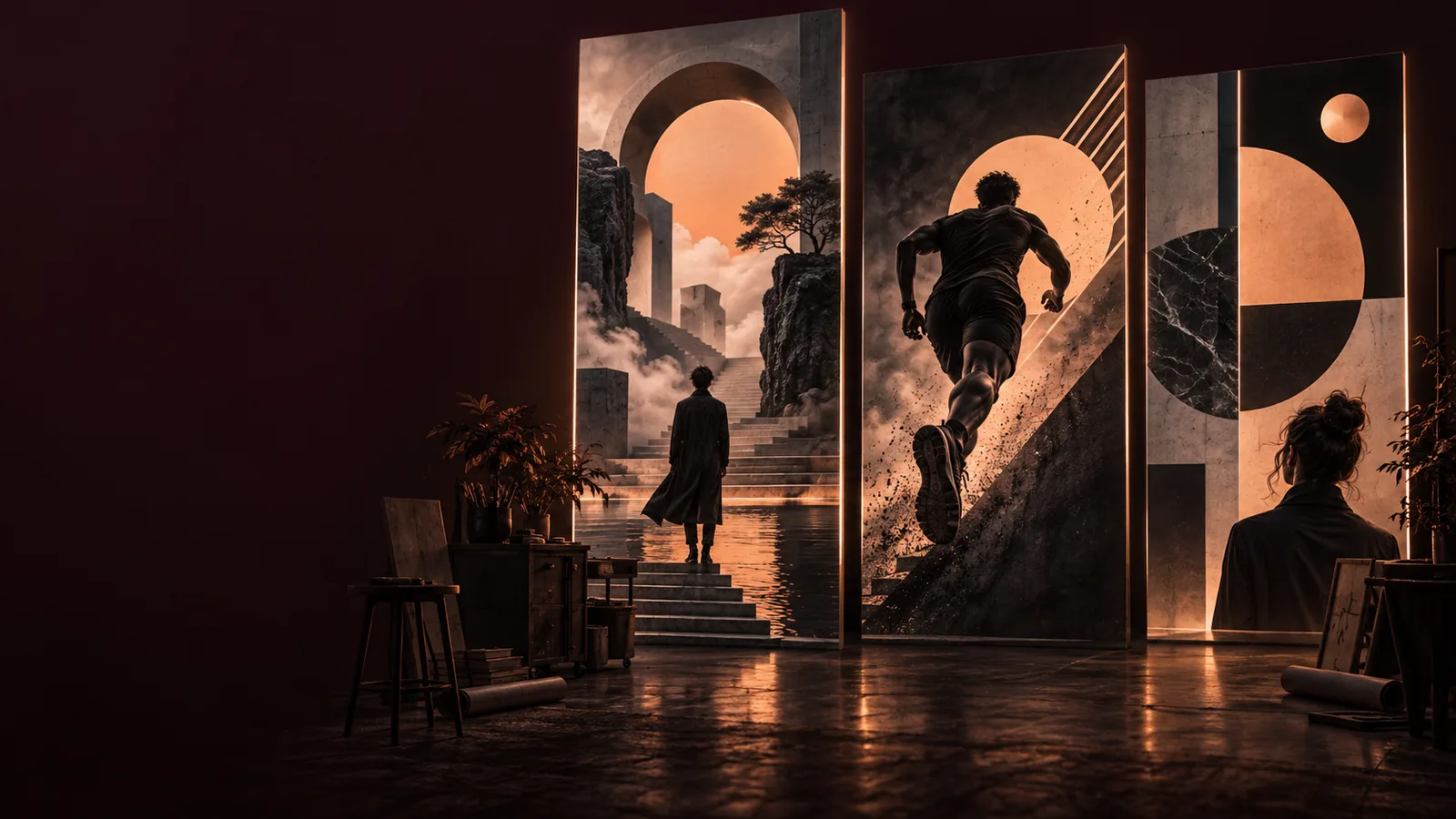
Aiposter landing image showing a poster design

prerequisites

Before generating an ai poster, gather the message, the required copy and the place it will appear. Those decisions make the tutorial template useful rather than restrictive.

  1. 1

    Write a one-line brief

    Name the audience and the single action you want them to take. For an event, that might be attending a neighborhood jazz night; for an announcement, it might be remembering a date. Keep this brief beside your prompt so you can judge whether the finished ai poster communicates the same idea.

  2. 2

    Collect exact information

    Write the headline, date, location and any essential contact details separately. Check spellings against the source before you begin. Generated lettering can be unreliable, so treat these words as copy to verify or add in an editor, not as text to trust because it looks convincing.

  3. 3

    Choose the display context

    Decide whether the design is for a phone screen, a presentation or a physical noticeboard. This affects the space around your headline and the size of supporting details. If you may print it, confirm the final dimensions and image quality with your printer before exporting.

Follow this sequence: describe the visual, inspect the result at its intended size, then correct the copy. These related guides help when your starting material changes.

common errors and fixes

Compare each weak result with a specific correction. The ai poster tutorial template works best as a review loop, not a promise that the first output is final.

1

Headline gets lost

What you notice

The main message blends into the background or competes with decorative shapes.

What to change

Ask for a quieter area behind the headline and stronger contrast. Read it at the size your audience will see.

2

Details are illegible

What you notice

A date or venue looks plausible at a glance but breaks into distorted characters up close.

What to change

Keep critical copy in your verified brief. Replace inaccurate generated text in a separate editor before sharing.

3

Too many focal points

What you notice

Several objects, colors and type treatments all demand attention at once.

What to change

Specify one focal subject, one headline area and a simpler background. Remove details that do not support the brief.

4

Awkward crop

What you notice

The subject sits too close to an edge or leaves no room for the message.

What to change

Describe where the subject should sit and request open space for copy. Check the intended crop before finalizing.

5

Style misses the audience

What you notice

The image feels playful when the announcement needs to look calm and formal.

What to change

Name the audience and describe the mood in concrete terms, such as restrained colors and an orderly composition.

6

Print looks soft

What you notice

The design appears acceptable on a phone but loses clarity when enlarged.

What to change

Check the exported file at its intended physical size and ask the printer about resolution and bleed requirements.

advanced tips

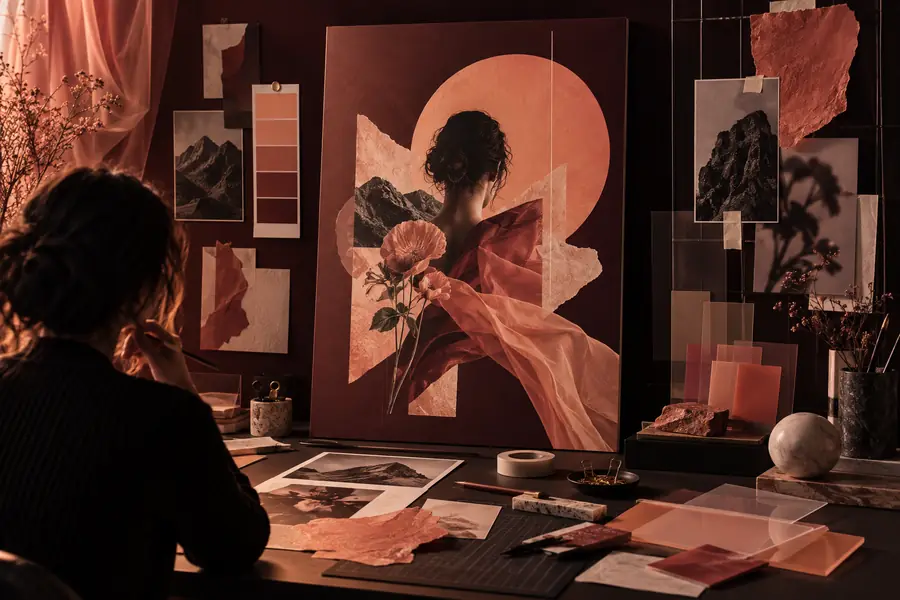
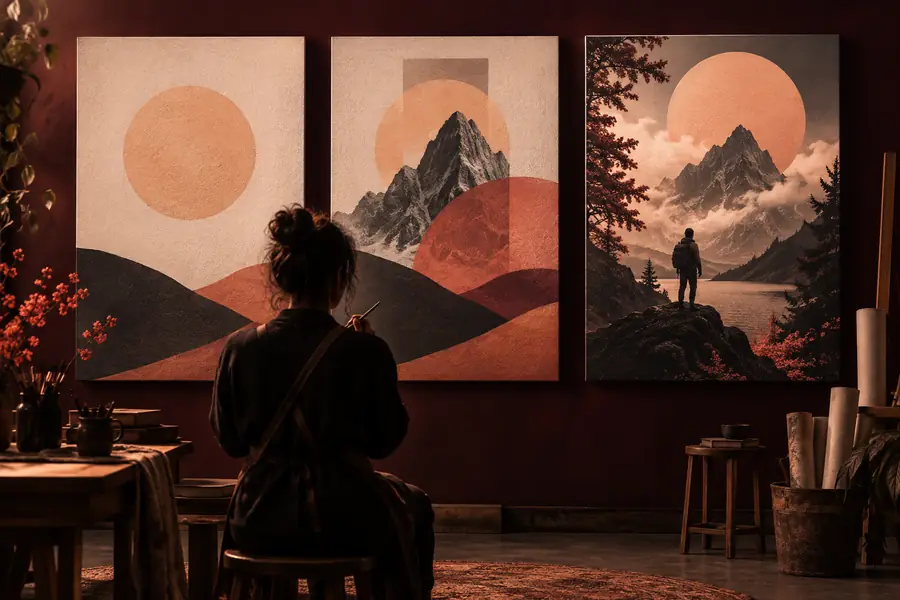
Reserve a clear area for verified lettering rather than asking the image to carry every word. Use this pair as a layout comparison, not as a claim of automatic editing.

  • Explore the concept
  • Review the layout

When refining an ai poster, change one instruction at a time: first the subject placement, then the background, then the space for copy. Save the version that communicates the brief most clearly, even if another looks more dramatic. These images illustrate two design stages; they are not a verified before-and-after edit of the same file.

Poster concept shown alongside design elements
Poster visual illustrating a more deliberate final composition

Apply the same tutorial template to different briefs, but change what you check before sharing. Each scenario calls for a different visual priority.

Event organizer

You need a jazz-night announcement with a strong mood and room for the venue details. Ask for a focal image and uncluttered space above or below it.

Check the date, location and headline separately from the artwork; atmosphere cannot make up for missing information.

free ai poster generator from text

Community coordinator

You already have a photograph that people will recognize. Build the design around that image rather than describing a replacement subject.

Keep important faces and landmarks away from the crop, then make the announcement readable over the remaining space.

ai poster maker from image

Art workshop host

You want the announcement to feel hand-drawn. Describe the illustration style and a limited palette without filling the entire frame with detail.

Leave a calm region for the workshop title and check that decorative lines do not interfere with small type.

ai poster drawing

Design student

You are testing how color, spacing and subject choice change the feel of one brief. Keep the message constant across your variations.

Compare the designs at the same viewing size and select the one whose mood supports the message without hiding it.

ai poster for aesthetic

Turn your brief into a poster draft

Use the tutorial template as a checklist: define the message, generate a visual direction, then inspect the layout and replace any incorrect lettering. A strong ai poster is one your audience can understand quickly, not merely one that looks striking at first glance.

Create a poster
  • Start with one clear message
  • Leave space for verified copy
  • Review at the intended display size

tutorial FAQ

Questions about using this tutorial template are answered below, from writing a first prompt to checking the result.

Start with the poster's purpose, audience and main subject. Then add the mood, a small color palette and where you want open space for the headline. Keep exact event details in a separate brief so you can verify them later.

Yes. Begin with a single message and use the numbered workflow to make one decision at a time. Judge the result by whether someone can find the headline and essential details quickly, rather than by how many visual effects it contains.

Generated images may produce letters that resemble words without spelling them correctly. Inspect every date, name and address closely. If the lettering is wrong, use the visual as a background and add verified text separately.

View it at approximately the size your audience will encounter it and ask whether the main message is immediately clear. Check spelling, contrast, cropping and any required details against your original brief. For print, confirm dimensions and file requirements with the printer.

Revise when the overall composition is close and you can identify one specific problem, such as insufficient headline space. Start a new direction when the subject or mood misses the brief entirely. Keeping changes specific makes it easier to tell what improved the ai poster.

Create a poster
Create a poster